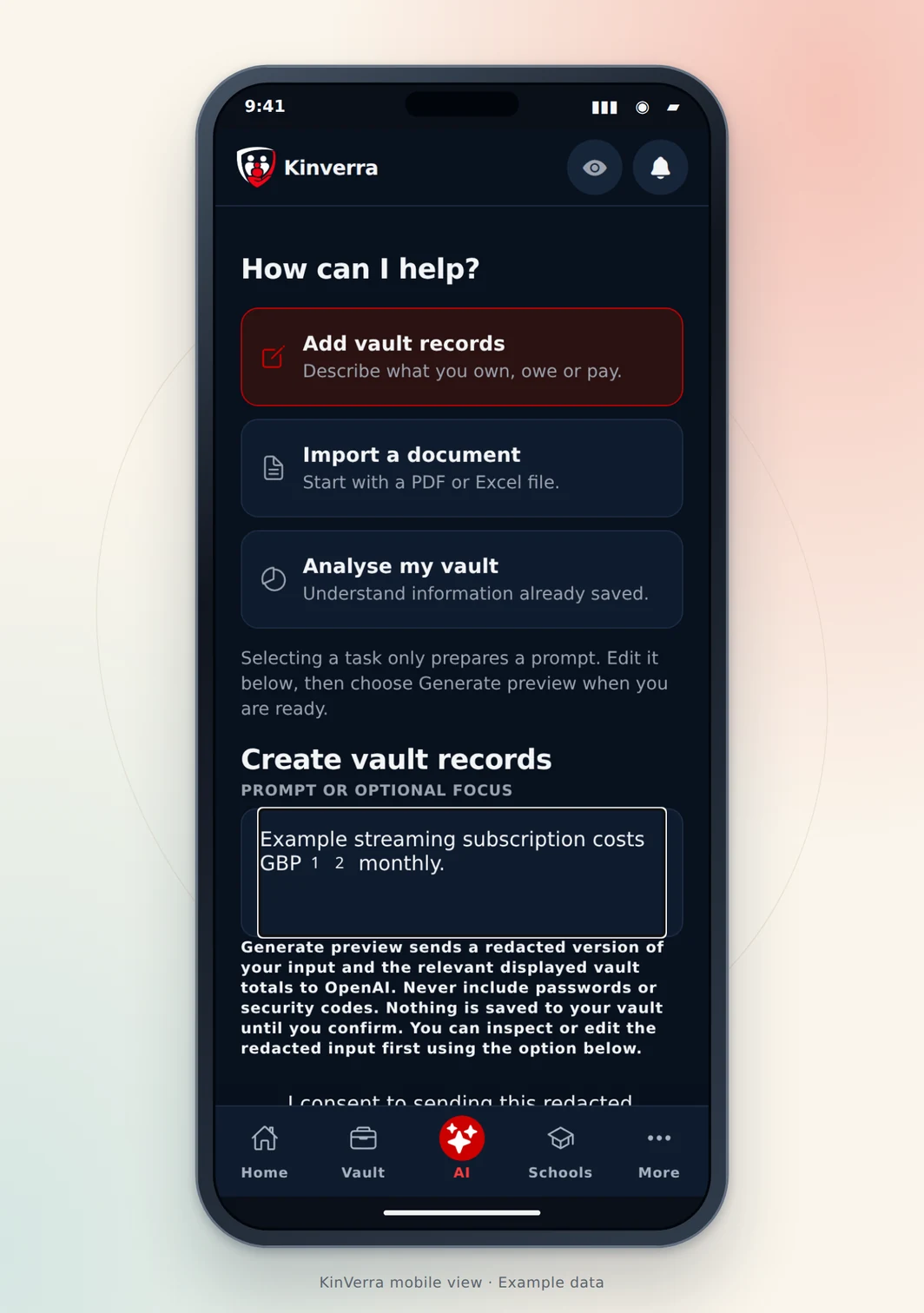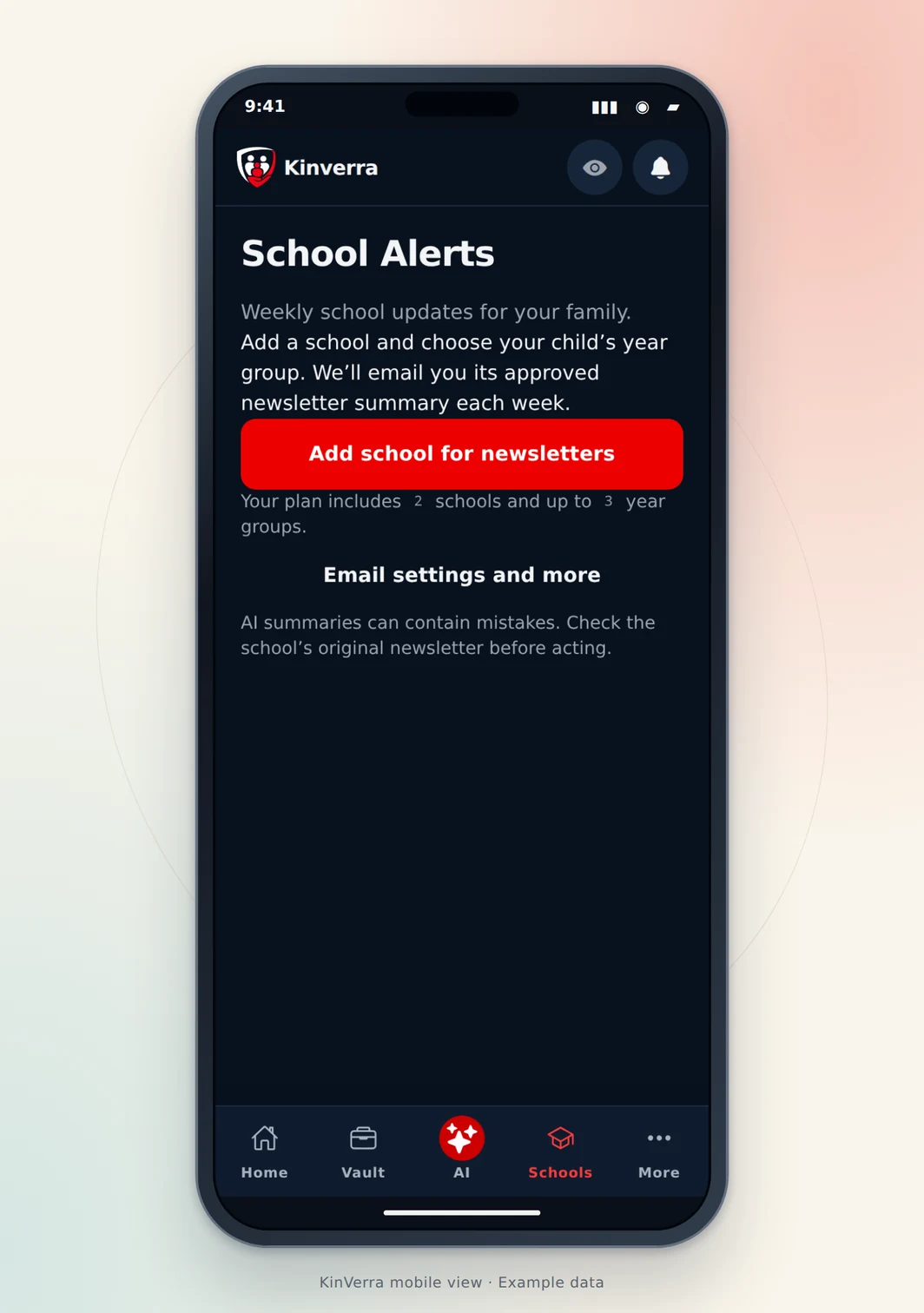
School Alerts lets you choose a supported school and year group, review available summaries and manage a weekly delivery preference. The service depends on verified official publications and operational availability. This guide explains the parent setup without promising that every school, latest issue or email delivery is already available.
| Guide | Details |
|---|---|
| Workspace | /school-alerts |
| Result | Check the next-delivery message after saving, but distinguish setup from successful email receipt. |
| Private workspace | Sign in to use your account tools. Public readers cannot see your records. |
1. Open Schools and read the current status
Choose Schools from the bottom navigation. The School Alerts screen shows your plan’s school and year-group limits and explains whether delivery is active. Read that status first: saving a preference cannot enable a school whose source or publication is still awaiting staff checks. Existing summaries may be unavailable when no verified recent issue has been approved.
2. Find the exact school
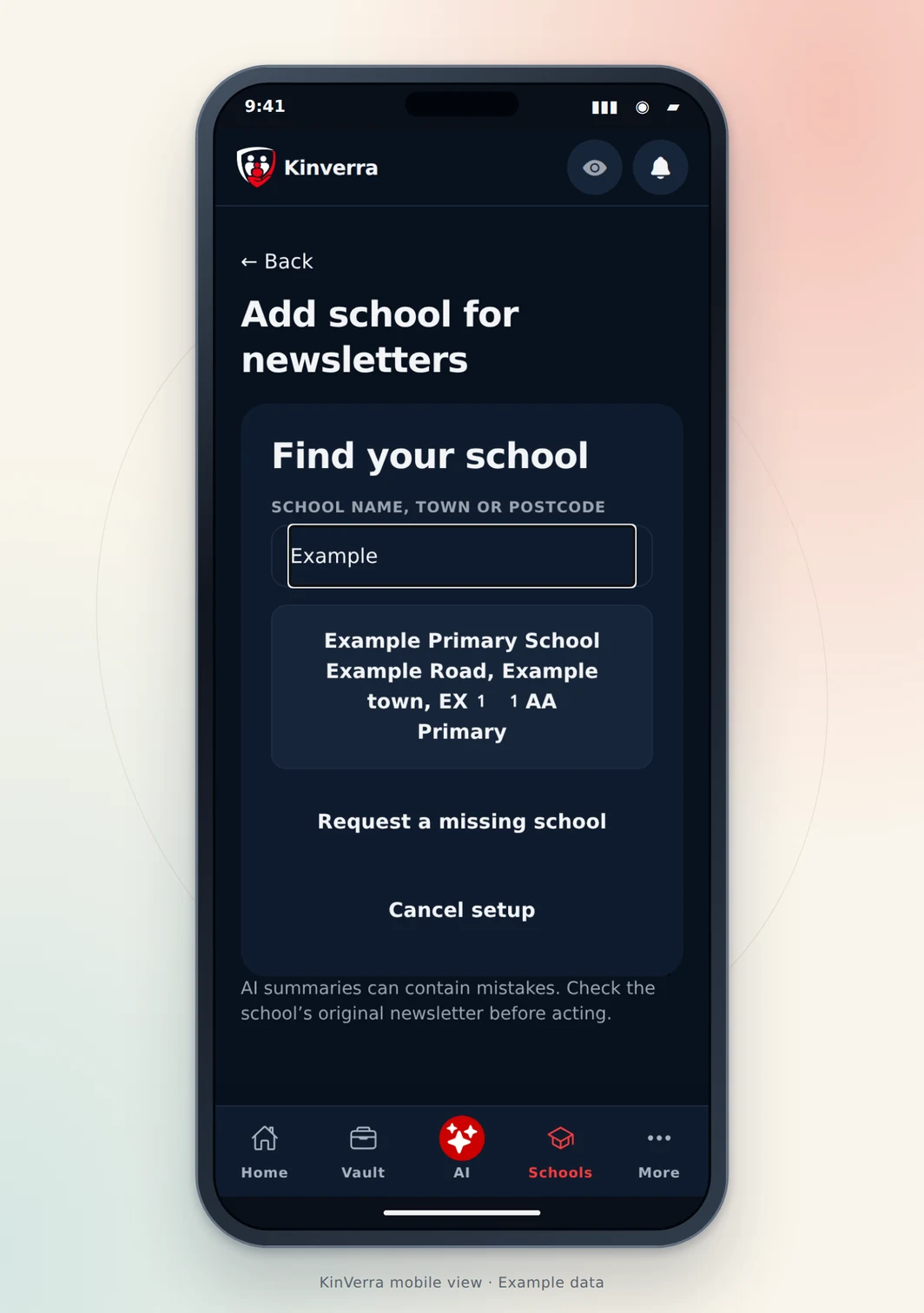
Use Schedule school newsletter or the setup controls to find your school by name, town or postcode. Check its address and phase before selecting it because schools can have similar names. If the right school is missing, use Request a missing school rather than choosing a different school just to complete the form. Requests need verification.
3. Choose the right year group
Select the year group offered for the verified school and add class information if relevant. Read the displayed selection before saving. A Year 2 summary is not automatically a Year 1 summary, and a class-specific notice may not apply to the whole school. Keep your child’s identifying details out of unnecessary free-text descriptions.
4. Set a weekly delivery preference
Open the Delivery controls and choose Weekly email day, Delivery time and Timezone. Confirm whether email delivery is enabled and review any immediate or current-summary option actually offered. A saved schedule is not a guarantee that a new newsletter exists each week. School holidays, less frequent publishing and unavailable official sources can affect what is ready to send.
5. Read a summary alongside the original
Use Summaries to read an available issue and follow its official-source link. Check dates, year-group applicability, payment amounts and deadlines before acting. An AI summary can contain errors or omissions. Where a notice is unclear or conflicts with later school communication, follow the school’s latest official information and ask the school for clarification.
6. Save a reminder only after checking the event
When an eligible event offers a reminder action, inspect its title, date and days-before setting before choosing Save KinVerra reminder. Use the offered undo control if you saved the wrong reminder. An undated or uncertain event must not receive a guessed calendar date. Review school selections when the child changes class, year or school.
Check the result before moving on
Check the next-delivery message after saving, but distinguish setup from successful email receipt. If nothing current is available, look for the explanation rather than submitting duplicate school requests. Keep the school’s original newsletter as the authoritative reference, especially for closures, collection arrangements and money-related actions.
- I checked the correct record, owner and source information.
- I saved or confirmed only the changes I intended.
- I distinguished a saved setting from a completed external action.