KinVerra AI prepares an editable preview of supported information; your review is the step that decides what reaches the vault. This guide follows the visible AI workflow, including privacy consent, redacted-input inspection and confirmation. Available features and credits depend on your account and the organisation’s settings.
| Guide | Details |
|---|---|
| Workspace | /ai-assistant |
| Result | Keep the source document or original statement available while reviewing. |
| Private workspace | Sign in to use your account tools. Public readers cannot see your records. |
1. Open AI and check availability
Choose the AI tab when it is available. If the app reports that processing is not ready, read the explanation rather than repeatedly submitting the same request. If privacy mode is hiding values, use the eye control before using the assistant. AI availability does not establish that every feature, model or paid operation is enabled for your account.
2. Select the task and prepare a small input
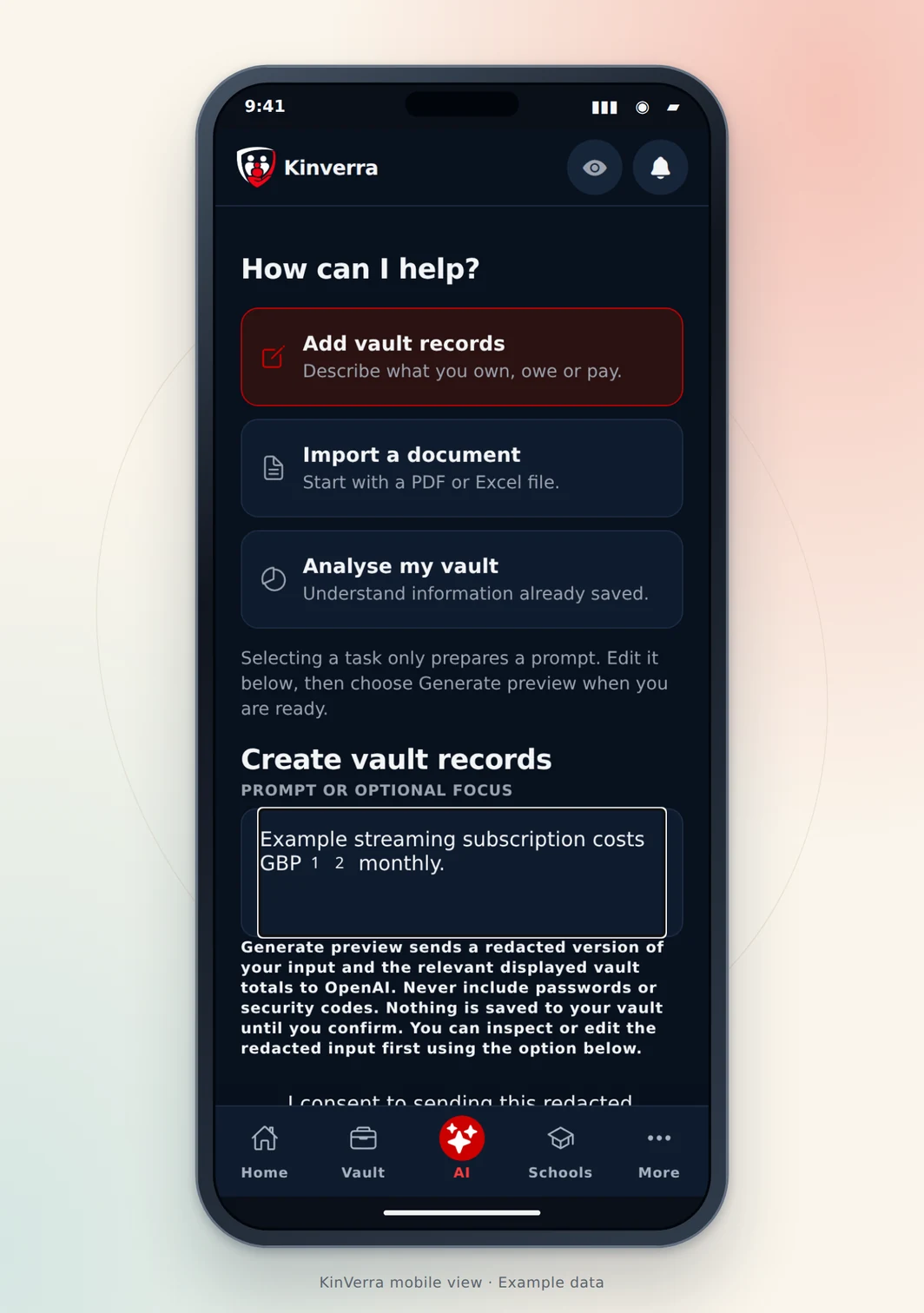
Choose Add vault records for a description of what you own, owe or pay, or Import a document for a supported PDF or Excel file. Start with a short, non-sensitive example you can check easily. Never include passwords, access codes, banking credentials, private keys or unrelated details about somebody else merely to provide background.
3. Inspect the redacted input before processing
Use Review redacted input · no credit used to inspect the text prepared for the external provider. Review the displayed local facts as well as the editable redacted content. Remove unnecessary personal details and correct obvious errors. Automated redaction is a useful aid, not a guarantee that every name, sensitive story or unusual identifier has been removed.
4. Read the disclosure and choose Generate preview
Read what will be sent and provide consent only when you intend to process that input. Generate preview shows whether the operation uses a text prompt or document operation. Check the remaining allowance and any budget explanation. The preview request is external processing; it should not be confused with saving an already reviewed record to your vault.
5. Inspect every proposed record
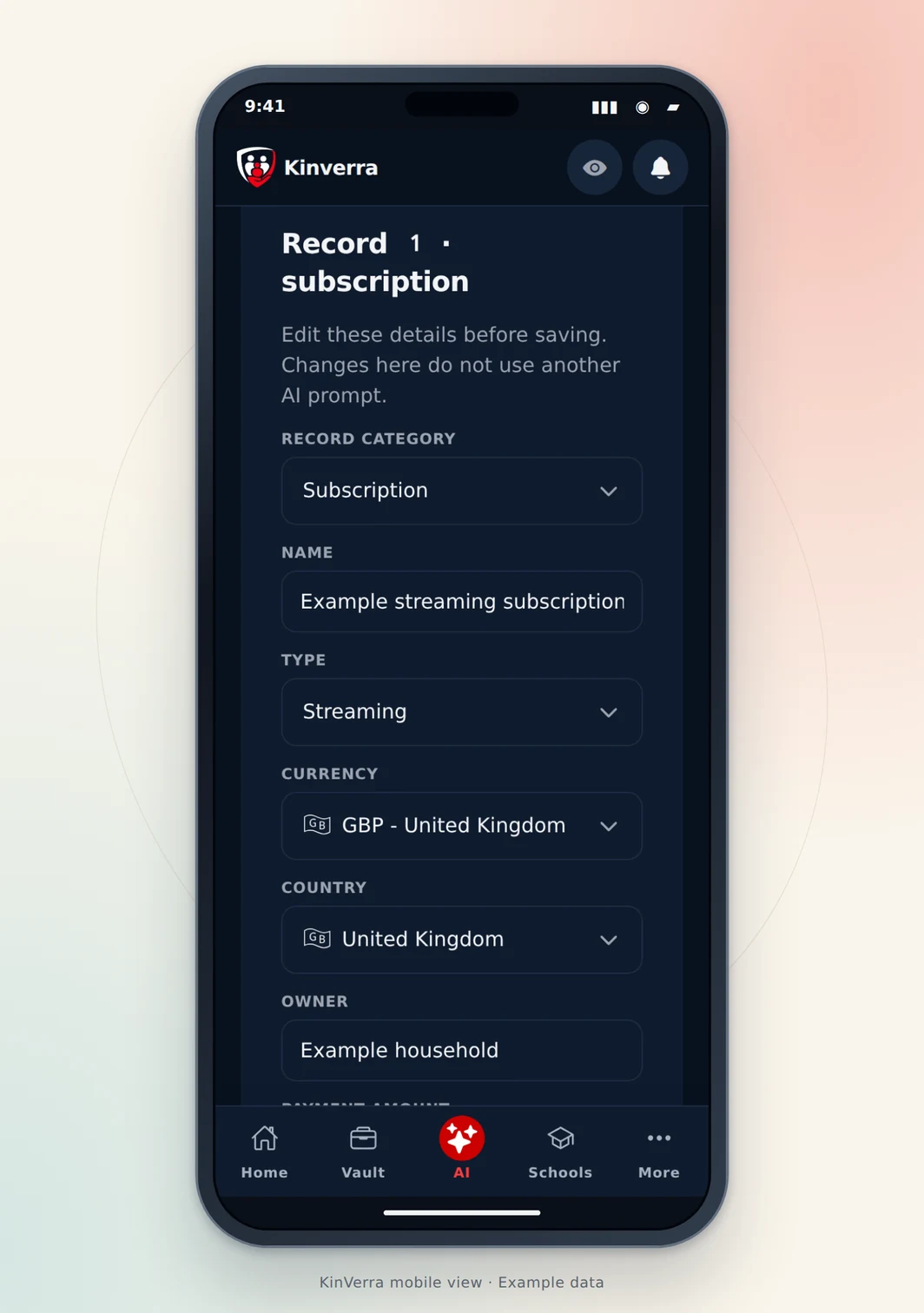
Review each proposed record’s type, name, owner, currency, amount and dates. Correct the editable fields and remove unwanted proposals before confirmation. If the source says “3333”, preserve that amount unless you establish a real correction. Do not accept a guessed payment date, a duplicated existing subscription or an incorrect currency simply because the generated text sounds confident.
6. Confirm only the records you want
Choose Confirm & save for the reviewed records when they match your intention. The button states that this save does not use an extra operation credit. Open the appropriate Vault category afterwards to verify the stored result. Delete this AI preview removes the preview itself; it does not delete records you already confirmed and saved.
Check the result before moving on
Keep the source document or original statement available while reviewing. An AI preview is a draft aid, not personalised financial advice or independent verification of a bill. If you cannot establish a value or date, leave that uncertainty unresolved until you can check the original information rather than allowing the preview to make the decision for you.
- I checked the correct record, owner and source information.
- I saved or confirmed only the changes I intended.
- I distinguished a saved setting from a completed external action.